In windows desktop lot of application use for mobile synchronize like Nokia PC suit or Samsung PC suit but the problem is that Nokia or Samsung did not work well with Ubuntu desktop, you can install these software through wine but these software not work properly if only use your mobile just for Internet you do not need any software but if you want to back up your sms , contact you have to use software in this post I will going to tell you which software is best for this work and how to configure this software
wammu is great app it will help to synchronize sms,contact,calendar with clear and easy navigation and support many mobile like
Nokia, Siemens, and Alcatel. It has complete support (read, edit, delete, copy) for contacts, todo, and calendar. It can read, save, and send SMS. It includes an SMS composer for multi-part SMS messages, and it can display SMS messages that include pictures. Currently, only text and predefined bitmaps or sounds can be edited in the SMS composer. It can export messages to an IMAP4 server (or other email storage).
how to configure wammu
open wammu it will display to configure mobile click yes welcome screen will appear click next
![clip_image002[4]](https://blogger.googleusercontent.com/img/b/R29vZ2xl/AVvXsEj-iFM-9G-Uf5GBHyziQ1Sj9HX337fEagynGFsh74Ng2GPPCbRnuIFQrj7DW48CLRkdFIizf5oT97vjN9W1onA5scTKCOiXWcR_wVFWU2N_vsyr6aDHIFv-bsOycuddFGWdi-LQF7S0UaQ/?imgmax=800 "clip_image002[4]") choose guided configuration and click next
choose guided configuration and click next
![clip_image004[4]](https://blogger.googleusercontent.com/img/b/R29vZ2xl/AVvXsEiF3u52gwpkn4e686tBTktQFOgNy78vrlbikxmCbHLA0D438grxiNMx77QDa7dtb62Vev0AtCBcat9Baq8jbMMRKF4fv0L2yJnKPwnBNwF-6eSHc3s_KMwdyYdy5TunSKq5b28Aq-XrRe4/?imgmax=800 "clip_image004[4]") in the windows you have to connection type bluetooth or usb and click next ( if you choose bluetooth first you have to pair your mobile with ubuntu desktop)
in the windows you have to connection type bluetooth or usb and click next ( if you choose bluetooth first you have to pair your mobile with ubuntu desktop)
![clip_image006[4]](https://blogger.googleusercontent.com/img/b/R29vZ2xl/AVvXsEi1RHH3lvu6v_U4IGvJdz3jZBElZX5aFjhQebPdRfsCbmIwWPQXuCQoSrQLnRy2zeGVB-iCMsTQCgg19JbnwmzsdLq4-EzIvcK5BNapm6I8DiS6QHtiAwsUGjSswLm6pYqRuf7eS6kQde8/?imgmax=800 "clip_image006[4]") click on mobile type nokia ,symbian ,samsung,sony ericsson etc and click next
and wait for few minute and than finish
click on mobile type nokia ,symbian ,samsung,sony ericsson etc and click next
and wait for few minute and than finish
ubuntu is great open source operating system several thing make ubuntu best Linux operating system like you can tweak lots of thing without using any software, 100 thousand of apps available for ubuntu desktop, and one of the most beneficial advantage of ubuntu that Linux is secure than windows .I like ubuntu classic desktop due to its easy and simple looks. Without wasting my time I will like come to the main topic that is how to add windows start menu in ubuntu. In this post I will tell two awesome applets for ubuntu that make this possible
Ubuntu system panel
Ubuntu system panel is a applet that you can download by going given link, this is advanced start menu applet for ubuntu user some of the features that I explain I think this will help you
 this applet has three section application ,system management and recent item and the search field for easy to use just enter your file or application name and ubuntu system will find out the same .the first section that is of system management give five application direct navigation by just a click. The second section that is of application shows the list of application installed . I loved this feature of ubuntu start menu that is in the third section or the recent item section give us a hold of the computer recent application as well as running recent application of the system.
Application
Gnome menu
this applet has three section application ,system management and recent item and the search field for easy to use just enter your file or application name and ubuntu system will find out the same .the first section that is of system management give five application direct navigation by just a click. The second section that is of application shows the list of application installed . I loved this feature of ubuntu start menu that is in the third section or the recent item section give us a hold of the computer recent application as well as running recent application of the system.
Application
Gnome menu
 Gnome menu is really great apps and is quite similar to the standard of ubuntu system panel it is also powerful and customizable applet full of easy navigation. It is almost gives a look of using window 7 start menu in ubuntu desktop.
how to download and install
For adding this you have to download and install eve installer and then open eve installer and click system that is placed in the left hand side of eve installer window
click on Gnome menu check box and click on apply bottom wait for few minute after downloading right click on panel and select add to panel in a search field enter gnome menu
Highlight and click on add bottom
Gnome menu is really great apps and is quite similar to the standard of ubuntu system panel it is also powerful and customizable applet full of easy navigation. It is almost gives a look of using window 7 start menu in ubuntu desktop.
how to download and install
For adding this you have to download and install eve installer and then open eve installer and click system that is placed in the left hand side of eve installer window
click on Gnome menu check box and click on apply bottom wait for few minute after downloading right click on panel and select add to panel in a search field enter gnome menu
Highlight and click on add bottom
It’s so simple to download flash video from YouTube or other site in a windows environment because much software available that can do it. but the problem occurred when we try to download flash video in ubuntu desktop I am personally research on this topic and I can't find any downloader that totally integration with Mozilla or any popular browsers so if you searching for a downloader that totally integrate with browser you wasting your time but I mention the best way to download video file to any, after reading this article you will be able to download flash video easily
You tube video downloader
 YouTube downloader is a extension for Mozilla and available to Mozilla fire for add ones center just type it s and add it after adding this extension browse your favorite video and download or copy url of video download video with any ubuntu downloader if you want know more about ubuntu downloader click Best downloader for ubuntu you can also convert with the help of you tube video downloader
Minitube
YouTube downloader is a extension for Mozilla and available to Mozilla fire for add ones center just type it s and add it after adding this extension browse your favorite video and download or copy url of video download video with any ubuntu downloader if you want know more about ubuntu downloader click Best downloader for ubuntu you can also convert with the help of you tube video downloader
Minitube
 Minitube is a YouTube desktop application.With it you can watch YouTube videos in a new way: you type a keyword, Minitube gives you an endless video stream.Minitube is not about cloning the original YouTube web interface, it aims to create a new TV-like experience. The program has a very easy-to-use and simple GUI (Graphical User Interface) that helps even the most amateur user. After downloading and installing minitube just video name and click search minitube show search in a left pane click for watch and then go video and download
You can download and install it by running this command
sudo add-apt-repository ppa:ferramroberto/minitube
Minitube is a YouTube desktop application.With it you can watch YouTube videos in a new way: you type a keyword, Minitube gives you an endless video stream.Minitube is not about cloning the original YouTube web interface, it aims to create a new TV-like experience. The program has a very easy-to-use and simple GUI (Graphical User Interface) that helps even the most amateur user. After downloading and installing minitube just video name and click search minitube show search in a left pane click for watch and then go video and download
You can download and install it by running this command
sudo add-apt-repository ppa:ferramroberto/minitube
sudo apt-get update
sudo apt-get install minitube
Email clients are especially important for the business user but are useful even for those not dependant on a corporate email server. Even if you don't use them to check your email on a daily basis, they're handy to keep an offline backup of all your email in case of problems with the service.
Mozilla Thunderbird
 It is an e-mail and news cross-platform client software package by Mozilla Foundation. Thunderbird can manage multiple e-mail, newsgroup and RSS accounts and supports multiple identities within accounts. Features like quick search, saved search folders , advanced message filtering, message grouping, and labels help manage and find messages. Just like Firefox, the tons of extensions and themes for this client makes it very secure and flexible to enhance your productivity.
Download Mozilla Thunderbird
Claws Mail
It is an e-mail and news cross-platform client software package by Mozilla Foundation. Thunderbird can manage multiple e-mail, newsgroup and RSS accounts and supports multiple identities within accounts. Features like quick search, saved search folders , advanced message filtering, message grouping, and labels help manage and find messages. Just like Firefox, the tons of extensions and themes for this client makes it very secure and flexible to enhance your productivity.
Download Mozilla Thunderbird
Claws Mail
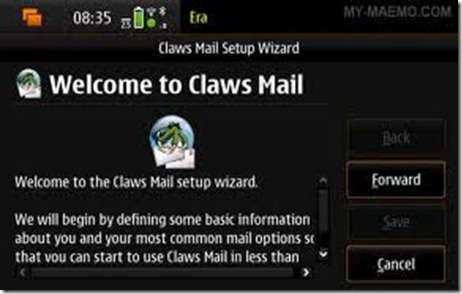 Claws Mail is a free, GTK+-based, open source email and news client. It is very light lightweight. Like Firefox , the wide variety of plug-ins for this email client makes it very flexible and secure.
Install claws-mail in Ubuntu
sudo aptitude install claws-mail
KMail
Claws Mail is a free, GTK+-based, open source email and news client. It is very light lightweight. Like Firefox , the wide variety of plug-ins for this email client makes it very flexible and secure.
Install claws-mail in Ubuntu
sudo aptitude install claws-mail
KMail
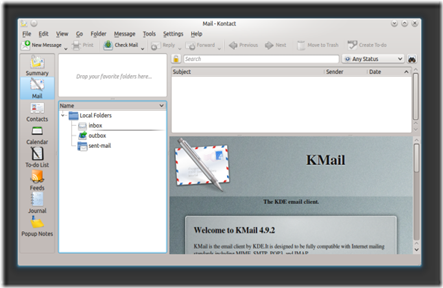 KMail does the threaded view better than the other tools, using line spacing to denote replies to messages in a thread. The search bar at the top can be used to search for messages, and you can use the drop-down list on its right to refine your search. For example, choose Has Attachment to limit your search to messages with attachments.
Download kmail from ubuntu software center
Evolution
KMail does the threaded view better than the other tools, using line spacing to denote replies to messages in a thread. The search bar at the top can be used to search for messages, and you can use the drop-down list on its right to refine your search. For example, choose Has Attachment to limit your search to messages with attachments.
Download kmail from ubuntu software center
Evolution
 Evolution is a fully featured open source groupware application — and a powerful, flexible and generally great email client, too. Evolution makes it easy to connect to Microsoft Exchange servers, filters spam using SpamAssassin and supports S/MIME for secure messaging.
By default Evolution install in uuntu desktop
Some features of Evolution
* Evolution manages multiple POP, IMAP, Microsoft Exchange and local email accounts.
* Evolution integrates calendar, address book and email.
* Flexible filters and virtual folders for message organization, classification and prioritization.
* Evolution integrates with SpamAssassin for junk mail filtering, can train the Bayesian part easily.
zimbra
Evolution is a fully featured open source groupware application — and a powerful, flexible and generally great email client, too. Evolution makes it easy to connect to Microsoft Exchange servers, filters spam using SpamAssassin and supports S/MIME for secure messaging.
By default Evolution install in uuntu desktop
Some features of Evolution
* Evolution manages multiple POP, IMAP, Microsoft Exchange and local email accounts.
* Evolution integrates calendar, address book and email.
* Flexible filters and virtual folders for message organization, classification and prioritization.
* Evolution integrates with SpamAssassin for junk mail filtering, can train the Bayesian part easily.
zimbra
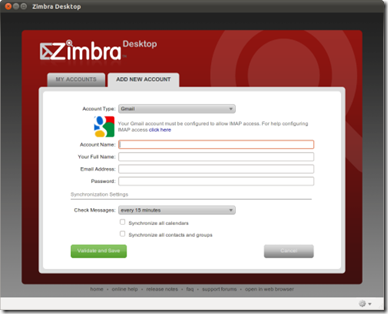 zimbra is free of cost most realiable full featured email client software for ubuntu desktop and Zimbra Desktop client allows you to meld the online and offline worlds – storing and synching your email, calendar, contacts, files and documents in the cloud, yet having them locally accessible. Zimbra Desktop aggregates information across accounts (Zimbra, Yahoo! Mail, Gmail, Hotmail, etc.) and social networks (Facebook, Digg, Twitter, etc.) to help make communicating and sharing information easier than ever.
Download zimbra
keep giving comments to improve my blog..
zimbra is free of cost most realiable full featured email client software for ubuntu desktop and Zimbra Desktop client allows you to meld the online and offline worlds – storing and synching your email, calendar, contacts, files and documents in the cloud, yet having them locally accessible. Zimbra Desktop aggregates information across accounts (Zimbra, Yahoo! Mail, Gmail, Hotmail, etc.) and social networks (Facebook, Digg, Twitter, etc.) to help make communicating and sharing information easier than ever.
Download zimbra
keep giving comments to improve my blog..
Like this post, DONT FORGOT TO SAY THANKS
Audio Converter is probably one of the must have application now a days, because it allows you to convert one audio format into another desirable audio format (songs/music for for your mobile or ipod or Android/iPhone or whatever). There are lot of free softwares available for audio conversion but SoundConverter is the most popular audio converter application for the Gnome based Linux distributions such as Ubuntu, Linux Mint, Fedora etc.
Sound Converter
 sound converter is used to convert audio file into many audio format like .ogg Vorbis, FLAC, or WAV format, or MP3 and it simple user interface you can audio files or add your folder and click convert bottom it will convert save all audio files to given folder path you can download it by going ubuntu software center
Ogg Converter
sound converter is used to convert audio file into many audio format like .ogg Vorbis, FLAC, or WAV format, or MP3 and it simple user interface you can audio files or add your folder and click convert bottom it will convert save all audio files to given folder path you can download it by going ubuntu software center
Ogg Converter
 I think ogg converter is the best audio converter for ubuntu because it’s easy to use, drag drop your files it support every format. Ogg converter converts 100 mp3 just in 2 minute
Here I mention some features of ogg converter
It can deal with audio-only files, video-only files, and files with many audio tracks (such as DVD rips with a commentary track).
Supports the Schroedinger encoder for encoding to the Dirac video format (note that this encoder is currently experimental).
Supports encoding to the Matroska container format.
It is very easy to use: drag a file onto the source bar (or use the file chooser) and hit Convert button. Of course, you can also change the video format, quality settings and the output filename if you like.
WinFF
I think ogg converter is the best audio converter for ubuntu because it’s easy to use, drag drop your files it support every format. Ogg converter converts 100 mp3 just in 2 minute
Here I mention some features of ogg converter
It can deal with audio-only files, video-only files, and files with many audio tracks (such as DVD rips with a commentary track).
Supports the Schroedinger encoder for encoding to the Dirac video format (note that this encoder is currently experimental).
Supports encoding to the Matroska container format.
It is very easy to use: drag a file onto the source bar (or use the file chooser) and hit Convert button. Of course, you can also change the video format, quality settings and the output filename if you like.
WinFF
 WinFF provides a frontend to FFmpeg. It works on Windows and Mac as well. It (actually FFmpeg) can be used for batch conversion of audio and video files. Just add the file(s) you wish to convert choose the desired format, apply device presets if you desire. Once you are set, hit the Convert button
Soundkonverter
WinFF provides a frontend to FFmpeg. It works on Windows and Mac as well. It (actually FFmpeg) can be used for batch conversion of audio and video files. Just add the file(s) you wish to convert choose the desired format, apply device presets if you desire. Once you are set, hit the Convert button
Soundkonverter
 Soundkonveter is very powefull and it user interface really good it convert many file just in few second
You can do many mare things with soundkonverter like rip, tag. Soundkonverter available in ubuntu software center
Xcfa
Soundkonveter is very powefull and it user interface really good it convert many file just in few second
You can do many mare things with soundkonverter like rip, tag. Soundkonverter available in ubuntu software center
Xcfa
 XCFA is oofers an extraction tool for Audio-CD and musical file conversion to flac, wav, mp3, ogg, m4a, mpc, ape, wavpack formats. Decompression of wma and shorten formats to flac, wav, mp3, ogg, m4a, mpc, ape, and wavpack.
Here are some key features of "XCFA":
· Extraction of Audio-CD and musical file conversion to flac, wav, mp3, ogg, m4a, mpc, ape, wavpack formats.
· Decompression of wma and shorten formats to flac, wav, mp3, ogg, m4a, mpc, ape, and wavpack.
· Handling of frequency, track and bits.
· Handling of files shared volume before a recording.
· Web retrieval of Audio-CD informations during treatment.
· Small cover creation for your CDs.
XCFA is oofers an extraction tool for Audio-CD and musical file conversion to flac, wav, mp3, ogg, m4a, mpc, ape, wavpack formats. Decompression of wma and shorten formats to flac, wav, mp3, ogg, m4a, mpc, ape, and wavpack.
Here are some key features of "XCFA":
· Extraction of Audio-CD and musical file conversion to flac, wav, mp3, ogg, m4a, mpc, ape, wavpack formats.
· Decompression of wma and shorten formats to flac, wav, mp3, ogg, m4a, mpc, ape, and wavpack.
· Handling of frequency, track and bits.
· Handling of files shared volume before a recording.
· Web retrieval of Audio-CD informations during treatment.
· Small cover creation for your CDs.
A computer application utilized to perform a complete backup by duplicating the original source of data is called backup software. The main purpose of backup software is to create order out of chaos by recovering essential files in the event of a disaster.
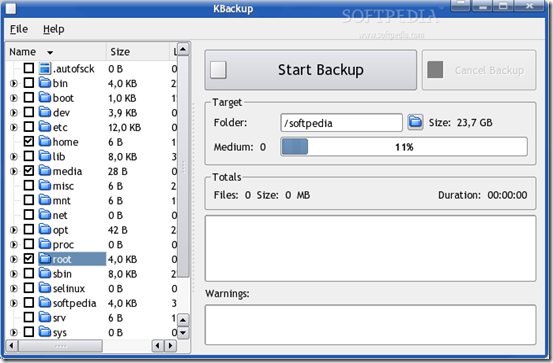
Kbackup
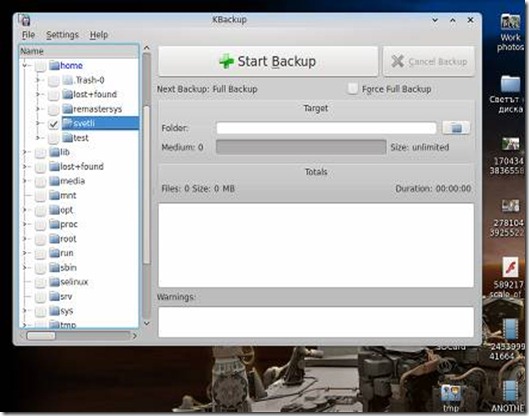 Kbackup is a program that lets you back up any directories or files. It uses an easy to use directory tree to select the things to back up and lets you save your settings in "profile" files. These are simple text files containing definitions for directories and files to be included or excluded from the backup process.
Deja Dup
Kbackup is a program that lets you back up any directories or files. It uses an easy to use directory tree to select the things to back up and lets you save your settings in "profile" files. These are simple text files containing definitions for directories and files to be included or excluded from the backup process.
Deja Dup
 Deja Dup is simple User Interface after opening you see deja show two option first restore (restore if make backup) and second option has back up to create backup
Features Support for local, remote, or cloud backup locations, such as Amazon S3 or Rackspace Cloud Files
Securely encrypts and compresses your data
Incrementally backs up, letting you restore from any particular backup
Schedules regular backups
Integrates well into your GNOME desktop
Lucky Backup
Deja Dup is simple User Interface after opening you see deja show two option first restore (restore if make backup) and second option has back up to create backup
Features Support for local, remote, or cloud backup locations, such as Amazon S3 or Rackspace Cloud Files
Securely encrypts and compresses your data
Incrementally backs up, letting you restore from any particular backup
Schedules regular backups
Integrates well into your GNOME desktop
Lucky Backup
 Lucky backup come with great UI and It is very simple to use, fast, reliable and fully customizable for your needs. Its main features are: backup, safety, synchronization, exclude/only include options, allows custom rsync options, remote connections, restore and dry-run operations, scheduling, profiles and command line mode. Lucky backup available in ubuntu software center or run this command
sudo apt-get install luckybackup
Simple Backup
Lucky backup come with great UI and It is very simple to use, fast, reliable and fully customizable for your needs. Its main features are: backup, safety, synchronization, exclude/only include options, allows custom rsync options, remote connections, restore and dry-run operations, scheduling, profiles and command line mode. Lucky backup available in ubuntu software center or run this command
sudo apt-get install luckybackup
Simple Backup
 Simple Backup Suite comprises of backend backup script and GNOME GUI frontends that provide a simple yet powerful backup solution for common desktop users.
Backups can be written to local directories or remote servers using GIO/GVFS technology. A fine control is possible regarding what folders and files to backup. Files can be excluded even with a set of regular expressions. Regular backups can be scheduled.
sudo /usr/bin/aptitude install sbackup
Backup In Time
Simple Backup Suite comprises of backend backup script and GNOME GUI frontends that provide a simple yet powerful backup solution for common desktop users.
Backups can be written to local directories or remote servers using GIO/GVFS technology. A fine control is possible regarding what folders and files to backup. Files can be excluded even with a set of regular expressions. Regular backups can be scheduled.
sudo /usr/bin/aptitude install sbackup
Backup In Time
 Backup in time is kde based software so it UI great easy to use and configure, you can schedule regular backups using cron. One of the best things if you also install the package nautilus-actions, it can be integrated with the Nautilus file manager to provide context-menu options.
Blogilo
 Blogilo is kde based software but also available for gnome use you can download blogilo by ubuntu software center the main feature of blogilo are
Blogilo is a Free/Open Source Blogging client, focused on simplicity and usability. Currently featured:
A full featured WYSIWYG editor + An HTML editor. Previewing your post with your blog style! Like when you are visiting it at your blog.Support for Blogger1.0, MetaWeblog, MovableType (Wordpress supports All of these!) and Google GData (used on Blogspot.com blogs) APIs!
Support for Creating/Modifying/Deleting posts.
Support for creating drafts and scheduled posts!
Support for uploading media files to your blog (Just on supported APIs e.g.
MetaWeblog and MovableType).
Support for fetching your recent blog entries.
Support for adding Images to post from your system. It will upload them on Submitting post to blog (Just on supported APIs e.g. MetaWeblog and MovableType).Support for saving local entries before publishing.Saving your writing copy to prevent data loss, at configurable intervals.Internal auto spell checker. (KDE spell checker used so most of languages are supported).
This package is part of the KDE PIM module.
BlogGtk
Blogilo is kde based software but also available for gnome use you can download blogilo by ubuntu software center the main feature of blogilo are
Blogilo is a Free/Open Source Blogging client, focused on simplicity and usability. Currently featured:
A full featured WYSIWYG editor + An HTML editor. Previewing your post with your blog style! Like when you are visiting it at your blog.Support for Blogger1.0, MetaWeblog, MovableType (Wordpress supports All of these!) and Google GData (used on Blogspot.com blogs) APIs!
Support for Creating/Modifying/Deleting posts.
Support for creating drafts and scheduled posts!
Support for uploading media files to your blog (Just on supported APIs e.g.
MetaWeblog and MovableType).
Support for fetching your recent blog entries.
Support for adding Images to post from your system. It will upload them on Submitting post to blog (Just on supported APIs e.g. MetaWeblog and MovableType).Support for saving local entries before publishing.Saving your writing copy to prevent data loss, at configurable intervals.Internal auto spell checker. (KDE spell checker used so most of languages are supported).
This package is part of the KDE PIM module.
BlogGtk
 BloGtk is gnome based blogging software it has simple user interface but it has many tool that used in editing of web pages
BloGTK is a weblogging client that allows users to post to their blogs without the need for a web browser. It features the following:
Connects with blogging systems like Blogger, Movable Type, as well as any system that uses the MetaWeblog API.
Supports advanced editing of posts including custom HTML tags and offline post saving and editing.
Supports basic HTTP proxies.
Blog entry poster
BloGtk is gnome based blogging software it has simple user interface but it has many tool that used in editing of web pages
BloGTK is a weblogging client that allows users to post to their blogs without the need for a web browser. It features the following:
Connects with blogging systems like Blogger, Movable Type, as well as any system that uses the MetaWeblog API.
Supports advanced editing of posts including custom HTML tags and offline post saving and editing.
Supports basic HTTP proxies.
Blog entry poster
 For a fully-fledged feature-rich blog editor, I won’t recommend this, but if you are looking for a simple editor that allows you to write and publish quick posts without any hassle, then Gnome Blog Editor is the best for you. Gnome-blog is a panel object (aka applet) that can post to weblogs using bloggerAPI, advogato API, MetaWeblog API or LiveJournal API.It notably works with Blogger.com / Blogspot.com, Advogato.org, Movable Type, WordPress, LiveJournal.com and Pybloxsom.
Thingamablog
For a fully-fledged feature-rich blog editor, I won’t recommend this, but if you are looking for a simple editor that allows you to write and publish quick posts without any hassle, then Gnome Blog Editor is the best for you. Gnome-blog is a panel object (aka applet) that can post to weblogs using bloggerAPI, advogato API, MetaWeblog API or LiveJournal API.It notably works with Blogger.com / Blogspot.com, Advogato.org, Movable Type, WordPress, LiveJournal.com and Pybloxsom.
Thingamablog
 Thingamablog is more than a blog editor. It is in fact a blogging software that allows you to create, edit, publish and maintain your blog from your desktop.
If you already own a third party web-hosted blog (such as WordPress, Blogger, LiveJournal), then this software is not suitable for you. Instead if you are looking to start your own blog and want to manage everything right from the desktop, this will be a great tool for you.
In Thingamablog, you can find the blog configuration option, post composing sections and many useful tools to help you manage your blog. It is just like a WordPress condensed to desktop version (minus the plugins).
In addition, Thingamablog is coded with Java, thus making it cross-platform compatible. As long as your system has got Java runtime, you will be able to run Thingamablog
QTM
Thingamablog is more than a blog editor. It is in fact a blogging software that allows you to create, edit, publish and maintain your blog from your desktop.
If you already own a third party web-hosted blog (such as WordPress, Blogger, LiveJournal), then this software is not suitable for you. Instead if you are looking to start your own blog and want to manage everything right from the desktop, this will be a great tool for you.
In Thingamablog, you can find the blog configuration option, post composing sections and many useful tools to help you manage your blog. It is just like a WordPress condensed to desktop version (minus the plugins).
In addition, Thingamablog is coded with Java, thus making it cross-platform compatible. As long as your system has got Java runtime, you will be able to run Thingamablog
QTM
 QTM is designed for the KDE desktop, but it works in Gnome as well. Among various native Linux blog editors (ScribeFire not included), I would say that QTM comes with the most complete features (though it is still far off from WLW) for most blog platforms.
You get a decent text editor, with options to specify categories, tags and pingbacks. There is also a quick post template where you can create a template set that you can use to publish quick posts.
QTM is designed for the KDE desktop, but it works in Gnome as well. Among various native Linux blog editors (ScribeFire not included), I would say that QTM comes with the most complete features (though it is still far off from WLW) for most blog platforms.
You get a decent text editor, with options to specify categories, tags and pingbacks. There is also a quick post template where you can create a template set that you can use to publish quick posts.
![clip_image002[4]](https://blogger.googleusercontent.com/img/b/R29vZ2xl/AVvXsEjRvia3mj1050XNKcqx4HfmEQY3Kn7SF9dx7AEoGck4FIrOHmrlKPhJw5Bw2DM2C2fo2VCxdi4wRGNiwWFy_f7uY8MSTm_BewxHmgwCzPJNefmedPluBwn3AqHgWOOOFICgxzuEZMSGHd0/s1600-h/clip_image002%25255B4%25255D%25255B3%25255D.jpg "clip_image002[4]")
![clip_image004[4]](https://blogger.googleusercontent.com/img/b/R29vZ2xl/AVvXsEh5zEh0JJeWasUqhQwrqTc_vJ5XjpkO9w2pFj42j1jaFbMSVWFqFminNQ6Jt5C57tpXPefk4_1YQUnYZb5p4LZurW1rcjk7u06qultMtJPmB0ZxbMdque7T94rtwkby55Ro9fuK_Fh1yuA/s1600-h/clip_image004%25255B4%25255D%25255B4%25255D.jpg "clip_image004[4]")
![clip_image006[4]](https://blogger.googleusercontent.com/img/b/R29vZ2xl/AVvXsEi0S_iPKyqkt_YdQ0v2PT8vyWs03eJZjHvpjGcf9JKMF15Rilt5UgtPCjDKuffBoFCL2vwpK9mcesBF5Rsz2TApUH4h_cA9iJfDC8ORi7qdX-vemkLg0HzQmG6lWReLYiMPYgp_vzRIL4I/s1600-h/clip_image006%25255B4%25255D%25255B4%25255D.jpg "clip_image006[4]")


![clip_image002[4]](https://blogger.googleusercontent.com/img/b/R29vZ2xl/AVvXsEh21GfPnCSudhFSQjKq2a7hM3xaD8FR_ksrkmgOqQbg9i55Gl67CDs1_r5UcYQlJ448QYNMuMHvFRIwxuKfrLbVxpO4kqIG1TE8-x4jBVSujdeEVdWjKyueCmQis2OPJeP1ww5tRnfQeok/s1600-h/clip_image002%25255B4%25255D%25255B4%25255D.jpg "clip_image002[4]")
![clip_image002[6]](https://blogger.googleusercontent.com/img/b/R29vZ2xl/AVvXsEjY08cUfyckX9UIMgBB4t9FRWsVbmynO0PnDtY_4U9FdHPIcSB6mO-c2yeRRI5Au4ZG5kwlPBcF2Qvf5O6B1okgZPv3HL8SSTk_MMNiPpp-uaDl-mu4u9SN7OoRVi7rF22AuuvN181UeiA/s1600-h/clip_image002%25255B6%25255D%25255B3%25255D.jpg "clip_image002[6]")
![clip_image002[8]](https://blogger.googleusercontent.com/img/b/R29vZ2xl/AVvXsEhD4dVfuIusXseYPK21EzxtUp-6YDSBmufVEeaZy0Cc8pu6bfqthI4roDbEW-Pf-ZHQMMvSSlTv_Ql62638riRXDyIJZjZ_HMJVXq3ybvKQW0HBE1AODveSq45jdUXvATUzgt6l9UQxAtg/s1600-h/clip_image002%25255B8%25255D%25255B4%25255D.jpg "clip_image002[8]")


